ENV:🧱 Arch LinuxのWSL2内環境構築
ENV:🧱 Arch LinuxのWSL2内環境構築
WSL2のインストール
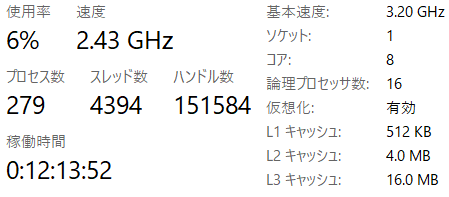
事前にBIOS設定から,仮想化を有効化しておいてください.
タスクマネージャー>パフォーマンス>CPUの下側にある仮想化が有効と表示されていれば操作は必要ありません.
1
2
3
PS$ wsl install

PS$ wsl --set-default-version 2
ArchLinuxのインストール
1
2
3
4
5
6
7
8
9
10
11
12
13
14
15
16
17
18
19
20
21
22
23
24
25
26
27
28
PS$ wsl --list --online
# ---
NAME                            FRIENDLY NAME
AlmaLinux-8                     AlmaLinux OS 8
AlmaLinux-9                     AlmaLinux OS 9
AlmaLinux-Kitten-10             AlmaLinux OS Kitten 10
AlmaLinux-10                    AlmaLinux OS 10
Debian                          Debian GNU/Linux
FedoraLinux-43                  Fedora Linux 43
FedoraLinux-42                  Fedora Linux 42
SUSE-Linux-Enterprise-15-SP7    SUSE Linux Enterprise 15 SP7
SUSE-Linux-Enterprise-16.0      SUSE Linux Enterprise 16.0
Ubuntu                          Ubuntu
Ubuntu-24.04                    Ubuntu 24.04 LTS
archlinux                       Arch Linux  # <-- ArchLinux
kali-linux                      Kali Linux Rolling
openSUSE-Tumbleweed             openSUSE Tumbleweed
openSUSE-Leap-16.0              openSUSE Leap 16.0
Ubuntu-20.04                    Ubuntu 20.04 LTS
Ubuntu-22.04                    Ubuntu 22.04 LTS
OracleLinux_7_9                 Oracle Linux 7.9
OracleLinux_8_10                Oracle Linux 8.10
OracleLinux_9_5                 Oracle Linux 9.5
openSUSE-Leap-15.6              openSUSE Leap 15.6
SUSE-Linux-Enterprise-15-SP6    SUSE Linux Enterprise 15 SP6
# ---

PS$ wsl --install archlinux
ArchLinuxのセットアップ
1
2
3
4
5
6
7
8
9
10
11
12
13
14
15
16
17
18
19
20
21
22
23
24
25
26
27
28
29
30
31
32
33
34
35
36
37
38
39
40
41
42
43
# 全更新
root$ pacman -Syy
root$ pacman -S base-devel git sudo nano
# ユーザー作成 (ユーザー名は適宜変更)
root$ useradd -m -G wheel -s /bin/bash <user>
# パスワード設定
root$ passwd <user>
root$ usermod -aG wheel <user>
root$ echo "%wheel ALL=(ALL:ALL) ALL" > /etc/sudoers.d/wheel
root$ chmod 440 /etc/sudoers.d/wheel
# ここで再起動

# デフォルトで<user>ログインするように変更
$ printf "[user]\ndefault=user\n" | tee -a /etc/wsl.conf

# 設定ファイルで日本語ロケールを有効化
$ sudo sed -i 's/^#ja\_JP.UTF-8 UTF-8/ja\_JP.UTF-8 UTF-8/' /etc/locale.gen
# システムのデフォルト言語設定 (必要であれば)
$ echo "LANG=ja\_JP.UTF-8" > sudo /etc/locale.conf
$ sudo nano /etc/locale.gen # <-- # en_US.UTF-8 UTF-8 コメント解除
# ロケール生成
$ sudo locale-gen
Generating locales...
  en_US.UTF-8... done
  ja_JP.UTF-8... done
Generation complete.
$ echo "export LANG=ja_JP.UTF-8" >> ~/.zshrc # bashの方は.bashrc
$ locale -a
C
C.utf8
en_US.utf8
ja_JP.utf8
POSIX
$ echo $LANG
ja_JP.UTF-8

# pacmanのwrapperであるYet Another Yogurtを導入
$ cd /tmp/
$ git clone https://aur.archlinux.org/yay-bin.git # <-- yay.gitではなく,yay-binを使うことで依存関係を省く
$ cd ./yay-bin
$ makepkg -si
$ yay --version
yay v12.5.2 - libalpm v15.0.0
個人的に必要なツール群のインストール
p10kのテーマを動作させるには,NerdFontが必要です. 僕はHackGen fontを導入しています.
OhMyZsh
(p10k, zsh-interactive-cd, zsh-autosuggestions, zsh-syntax-highlighting)
1
2
3
4
5
6
7
8
9
10
11
12
13
14
15
16
17
18
19
20
21
$ yay -S zsh
# デフォルトシェルの変更
$ chsh -s /bin/zsh
# ここで再ログイン
# OhMyZsh
$ sh -c "$(curl -fsSL https://raw.githubusercontent.com/ohmyzsh/ohmyzsh/master/tools/install.sh)"
#
$ git clone --depth=1 https://github.com/romkatv/powerlevel10k.git "${ZSH_CUSTOM:-$HOME/.oh-my-zsh/custom}/themes/powerlevel10k"
# ~/.zshrcのZSH_THEMEを"powerlevel10k/powerlevel10k"に手動変更してください
# zsh-autosuggestions
$ git clone https://github.com/zsh-users/zsh-autosuggestions ${ZSH_CUSTOM:-~/.oh-my-zsh/custom}/plugins/zsh-autosuggestions
# zsh-syntax-highlighting
$ git clone https://github.com/zsh-users/zsh-syntax-highlighting.git ${ZSH_CUSTOM:-~/.oh-my-zsh/custom}/plugins/zsh-syntax-highlighting
# zsh-interactive-cd
$ yay -S fzf
$ git clone https://github.com/mrjohannchang/zsh-interactive-cd.git ${ZSH_CUSTOM:-~/.oh-my-zsh/custom}/plugins/zsh-interactive-cd

# ~/.zshrcのplugin行の括弧内に下記を追記
plugins=(zsh-autosuggestions zsh-syntax-highlighting zsh-interactive-cd)

$ source ~/.zshrc
tools
1
2
3
4
5
6
7
8
9
10
11
12
13
14
15
16
17
18
19
20
21
22
23
24
25
26
27
28
29
30
31
32
33
34
35
36
37
38
39
40
41
42
43
44
45
46
47
48
49
50
51
52
53
54
55
56
57
58
59
60
61
62
63
64
65
66
67
68
69
70
71
72
73
74
75
76
77
78
79
80
81
82
83
84
85
86
87
88
89
# pacmanミラーリストを最適化(sudo pacman -Syu等の高速化)
$ sudo pacman -S reflector
$ cat /etc/pacman.d/mirrorlist
Server = https://fastly.mirror.pkgbuild.com/$repo/os/$arch
Server = https://geo.mirror.pkgbuild.com/$repo/os/$arch
$ sudo cp /etc/pacman.d/mirrorlist /etc/pacman.d/__mirrorlist.bak
# 日本 && 最終同期が24時間以内 && ダウンロード速度が速い順に並び変え && チェックサーバからミラーへの接続成功率が高いもの
$ sudo reflector --country 'Japan' --protocol https --age 24 --sort rate --completion-percent 95 --save /etc/pacman.d/mirrorlist
$ cat /etc/pacman.d/mirrorlist
################################################################################
################# Arch Linux mirrorlist generated by Reflector #################
################################################################################

# With:       reflector --country Japan --protocol https --age 24 --sort rate --completion-percent 95 --save /etc/pacman.d/mirrorlist
# When:       2025-11-25 02:32:14 UTC
# From:       https://archlinux.org/mirrors/status/json/
# Retrieved:  2025-11-25 02:32:10 UTC
# Last Check: 2025-11-25 02:27:36 UTC
Server = https://mirrors.cat.net/archlinux/$repo/os/$arch
Server = https://mirror.rain.ne.jp/archlinux/$repo/os/$arch
Server = https://jp.mirrors.cicku.me/archlinux/$repo/os/$arch
Server = https://www.miraa.jp/archlinux/$repo/os/$arch

# openssh
$ sudo pacman -Syu openssh
$ sudo systemctl enable sshd
Created symlink '/etc/systemd/system/multi-user.target.wants/sshd.service' → '/usr/lib/systemd/system/sshd.service'.
# sshの設定
$ mkdir ~/.ssh
$ chmod 700 ~/.ssh
$ cd ~/.ssh
$ touch config

# fastfetch
$ yay -S fastfetch
$ fastfetch
                  -`                     xxxxxx@DESKTOP-XXXXXX
                 .o+`                    -----------------------
                `ooo/                    OS: Arch Linux x86_64
               `+oooo:                   Host: Windows Subsystem for Linux - archlinux (2.6.1.0)
              `+oooooo:                  Kernel: Linux 6.6.87.2-microsoft-standard-WSL2
              -+oooooo+:                 Uptime: 1 hour, 47 mins
            `/:-:++oooo+:                Packages: 161 (pacman)
           `/++++/+++++++:               Shell: zsh 5.9
          `/++++++++++++++:              WM: WSLg 1.0.66 (Wayland)
         `/+++ooooooooooooo/`            Terminal: Windows Terminal
        ./ooosssso++osssssso+`           CPU: AMD Ryzen 7 7735HS (16) @ 3.19 GHz
       .oossssso-````/ossssss+`          GPU: AMD Radeon(TM) Graphics (951.46 MiB) [Integrated]
      -osssssso.      :ssssssso.         Memory: 2.41 GiB / 15.01 GiB (16%)
     :osssssss/        osssso+++.        Swap: 0 B / 4.00 GiB (0%)
    /ossssssss/        +ssssooo/-        Disk (/): 3.46 GiB / 1006.85 GiB (0%) - ext4
  `/ossssso+/:-        -:/+osssso+-      Disk (/mnt/c): 127.25 GiB / 952.89 GiB (13%) - 9p
 `+sso+:-`                 `.-/+oso:     Local IP (eth0): 172.xx.xx.xxx/xx
`++:.                           `-/+/    Battery (Microsoft Hyper-V Virtual Battery): 50% [Discharging]
.`                                 `/    Locale: ja_JP.UTF-8

# Rust
$ curl --proto '=https' --tlsv1.2 -sSf https://sh.rustup.rs | sh

# Docker
# systemdが有効であることを確認
$ cat /etc/wsl.conf
[boot]
systemd=true
$ sudo pacman -Syu docker docker-compose
$ sudo systemctl enable --now docker
Created symlink '/etc/systemd/system/multi-user.target.wants/docker.service' → '/usr/lib/systemd/system/docker.service'.
$ systemctl status docker
● docker.service - Docker Application Container Engine
     Loaded: loaded (/usr/lib/systemd/system/docker.service; enabled; preset: disabled)
     Active: activating (start) since Tue 2025-11-25 11:03:50 JST; 994ms ago
        Job: 624
 Invocation: 2fa5a38cdb914e3794e21f4be11f8115
TriggeredBy: ● docker.socket
       Docs: https://docs.docker.com
   Main PID: 24305 (dockerd)
      Tasks: 13
     Memory: 21.6M (peak: 24.5M)
        CPU: 657ms
     CGroup: /system.slice/docker.service
             └─24305 /usr/bin/dockerd -H fd:// --containerd=/run/containerd/containerd.sock

# Docker非ルート実行
$ sudo groupadd docker # すでに存在する場合はスキップ
$ sudo usermod -aG docker $USER
$ newgrp docker
$ docker run hello-world
Hello from Docker!
This message shows that your installation appears to be working correctly.
gitの初期セットアップ
1
2
3
# git
$ git config --global user.name "<user>"
$ git config --global user.email "user@example.com"
トラブルシューティング
下記のエラーが表示される場合は,下記を導入してwsl --shutdownで再起動
wsl: Failed to start the systemd user session for ‘< user >’. See journalctl for more details.
1
sudo packman -S dbus
参考記事
- 不言実行.com/Arch Linux - reflectorでミラーリストを更新
- Arch Linux のミラーリストの設定に reflector を使う - SHIDALOG
[Post-installation steps Docker Docs](https://docs.docker.com/engine/install/linux-postinstall) - 【Git】メールアドレスを非公開にする #GitHub - Qiita/@pan_Brown
This post is licensed under CC BY 4.0 by the author.